Setting Up Spoolman with Bambulab AMS - A Guide for the Technically Perplexed
Have you tried turning your filament management system off and on again? No? Well, good news - we won’t have to because we’re setting it up properly the first time!
The Problem with Unmanaged Filament, or “Why Is There a Spaghetti Monster in My Print Room?”
Hello there fellow humans and possibly some very advanced robots! Moss here, and today I’m going to tell you about the absolutely riveting world of filament management. You see, keeping track of your 3D printer filament without a proper system is like trying to organize Roy’s lunch drawer - chaotic, potentially hazardous, and likely to contain unexpected surprises.
The Solution: Spoolman and Its Bambulab AMS Companion
Remember that time I got stuck in a server room because I couldn’t find the right cable? Well, we won’t have that problem with our filament anymore! We’re going to set up two magical pieces of software:
- Spoolman - The Marie Kondo of filament management
- Bambulab-AMS-Spoolman-FilamentStatus - The faithful messenger between your Bambulab printer and Spoolman
Setting Up Our Digital Filament Kingdom
First, we need to create a docker-compose file. Now, don’t panic - it’s just YAML, not the dreaded Vista installation screen. Here’s what you need:
version: '3.8'
services:
  spoolman:
    image: ghcr.io/donkie/spoolman:latest
    restart: unless-stopped
    volumes:
      - type: bind
        source: /share/Container/spoolman
        target: /home/app/.local/share/spoolman
    ports:
      - "7912:8000"
    environment:
      - TZ=Europe/Stockholm

  bambulab-ams-spoolman-filamentstatus:
    image: ghcr.io/rdiger-36/bambulab-ams-spoolman-filamentstatus:dev
    container_name: bambulab-ams-spoolman-filamentstatus
    environment:
      - PRINTER_ID=01P090000001
      - PRINTER_CODE=11111111
      - PRINTER_IP=192.168.10.91
      - SPOOLMAN_IP=192.168.8.250
      - SPOOLMAN_PORT=7912
      - UPDATE_INTERVAL=120000
    restart: unless-stopped
Did you know? The chances of properly configuring this on the first try are exactly the same as Jen understanding what IT stands for!
Important Things to Remember (Or “Things That Will Come Back to Haunt You if You Forget”)
PRINTER_ID must be in capital letters - Yes, it’s shouting, but that’s how important it is. Like when I tell people not to Google “Google” - it’s for their own good.
This only works with original Bambulab spools - Much like how Roy only dates women who’ve seen “The IT Crowd”, this system is rather particular about its compatibility.
Update interval is in milliseconds - 120000ms = 2 minutes. I once set it to 120 and wondered why my system was having a nervous breakdown worthy of Denholm Reynholm.
Getting Your Printer Details
You’ll need three things from your printer:
- Serial number (PRINTER_ID)
- Access code (PRINTER_CODE)
- IP address (PRINTER_IP)
Finding these is like a treasure hunt, but with less pirates and more network settings menus.
Conclusion
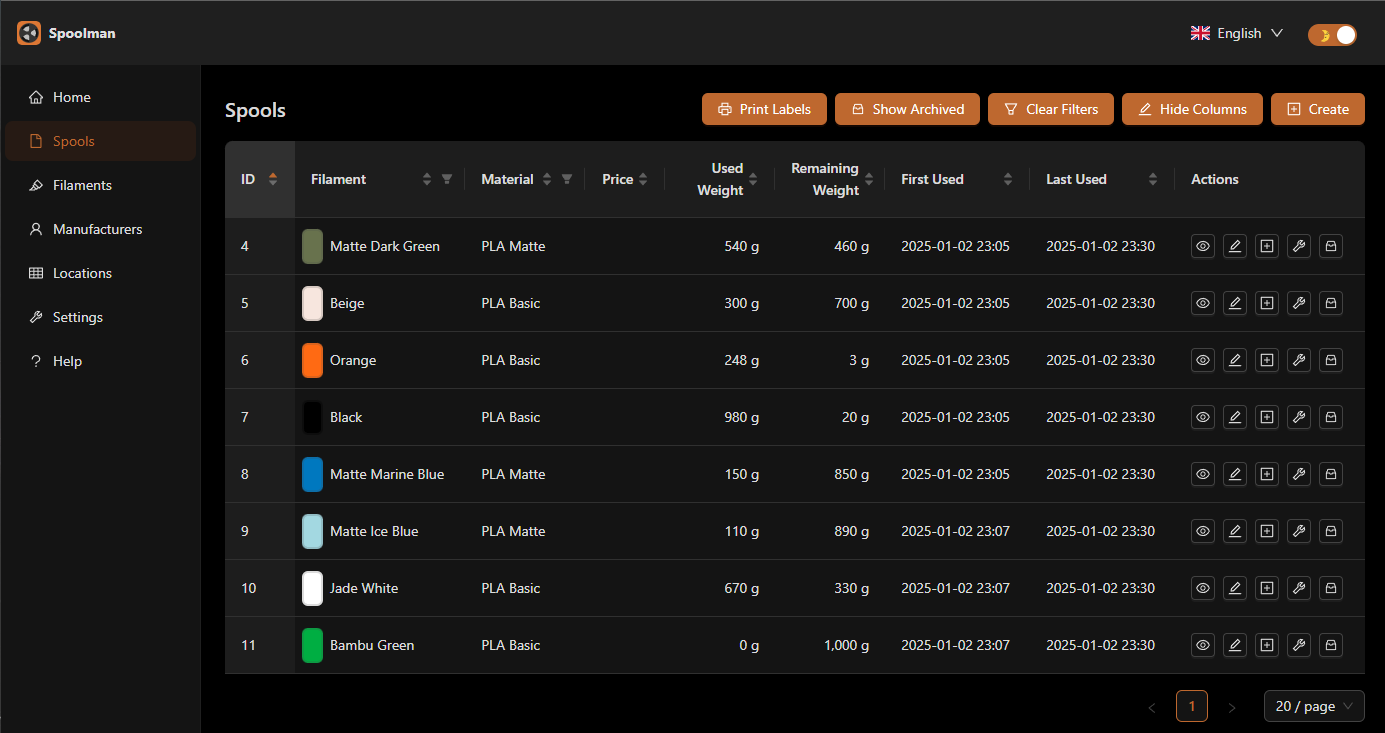
Exactly like how Roy’s life was changed by the IT Crowd, your life will be changed by this filament management system. It’s like having a personal assistant that knows exactly how much filament you have left and where it’s stored.
And there you have it! A fully automated filament management system that would make even Douglas proud. No more manually tracking spools like some kind of barbarian from the seventh floor!
Remember: In case of fire, do not store your filament next to the fire extinguisher that I made into a desk lamp. That was a different project altogether.
If you need me, I’ll be in my happy place, watching my filament levels update automatically every 120000 milliseconds. It’s better than that time I convinced Jen that the Internet was in a small black box!
0118 999 881 999 119 725… 3 would have been a terrible update interval, by the way.
References
https://github.com/Rdiger-36/bambulab-ams-spoolman-filamentstatus