“The Internet is coming!” - Jen, probably experiencing bufferbloat during her presentation
The Problem: Your Internet is Lying to You (And It’s Not Even Good at It)
You know what’s really frustrating? When you pay for gigabit fiber, you run a speed test and see glorious numbers like 680 Mbps download, and then the moment someone starts uploading vacation photos to the cloud, your gaming session turns into a slideshow. Your ping goes from a respectable 12ms to a painful 49ms, and suddenly you’re being eliminated in games before you even see the enemy.
It’s like when Roy says “I’ll be there in a minute” and shows up three hours later - except it’s your router doing it to every packet you send.
This phenomenon has a name, and it’s not “Roy’s Time Dilation Effect.” It’s called bufferbloat, and it’s been plaguing home networks since routers decided that buffering ALL THE THINGS was a good idea (spoiler: it wasn’t).
What IS Bufferbloat? (Explaining It Like You’re Jen)
Imagine your internet connection is like the hallway in Reynholm Industries. Normally, people (packets) can walk through at a reasonable pace. But now imagine the hallway has a really long queue system - like at an airport, with those zigzag rope barriers.
When lots of people (data packets) try to use the hallway at once, the router says “No problem! I’ll just make them queue up!” and creates this massive buffered queue. The queue gets so long that by the time your urgent “I need to respawn NOW” gaming packet gets to the front, you’ve already been teabagged by the entire enemy team.
In technical terms: Bufferbloat is excessive latency caused by network equipment buffering too much data. When your router receives more data than it can immediately send, it stores (buffers) that data in memory. The problem is that modern routers have HUGE buffers - way bigger than they need - causing packets to wait in line for hundreds of milliseconds.
How to Test for Bufferbloat (The Moment of Truth)
Before we fix anything, let’s see if you actually have this problem. Head over to Waveform’s Bufferbloat Test.
Here’s what the test does (it’s quite clever, actually):
- Measures your baseline latency - How fast packets travel when nothing else is happening
- Starts a download test - Floods your connection with download traffic
- Measures latency again - Checks how much your latency increased
- Repeats with upload test - Because upload bufferbloat is usually worse
If your latency increases significantly (more than 30-50ms), congratulations! You have bufferbloat. It’s not the prize anyone wants, like that time Moss won “Employee of the Month” and got a broken keyboard.
My Results (Before the Fix)
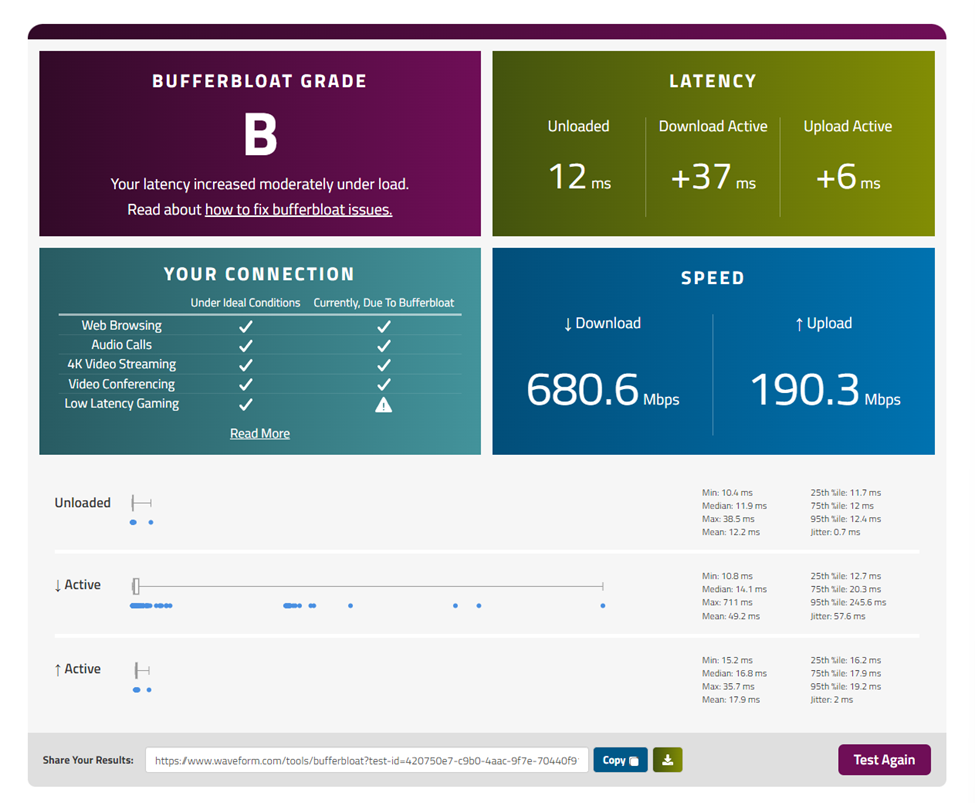
Look at those numbers:
- Grade: B (which is like getting a “satisfactory” from Denholm - not great)
- Unloaded latency: 12ms (pretty good!)
- Download active: +37ms (ouch!)
- Upload active: +6ms (not terrible, but not great)
- Speed: 680.6 Mbps down / 190.3 Mbps up (the speed is fine, but at what cost?)
That +37ms during downloads means every time someone in the house watches Netflix, my gaming experience goes from “professional” to “potato laptop on hotel WiFi.”
The Solution: Traffic Shaping (Teaching Your Router Some Manners)
Here’s the counterintuitive part that would make Jen’s brain hurt: To fix bufferbloat, you need to deliberately slow down your internet connection.
I know, I know - it sounds like when Roy told Jen that “turning it off and on again” would make the computer faster. But this actually works!
The trick is to configure traffic shaping (also called QoS - Quality of Service) on your router. You’re basically telling your router: “Hey, don’t try to use 100% of the bandwidth. Leave a little headroom, and more importantly, don’t buffer packets for eternity.”
Setting Up Traffic Shaping in pfSense/OPNsense
I’m using pfSense (because I’m that kind of person - the kind who configures their router instead of watching football). Here’s how to fix it:
Step 1: Find Your Actual Speeds
First, run a speed test and note your real-world download and upload speeds. In my case:
- Download: ~680 Mbps
- Upload: ~190 Mbps
Step 2: Configure Traffic Limiters
Navigate to Firewall → Traffic Shaper → Limiters
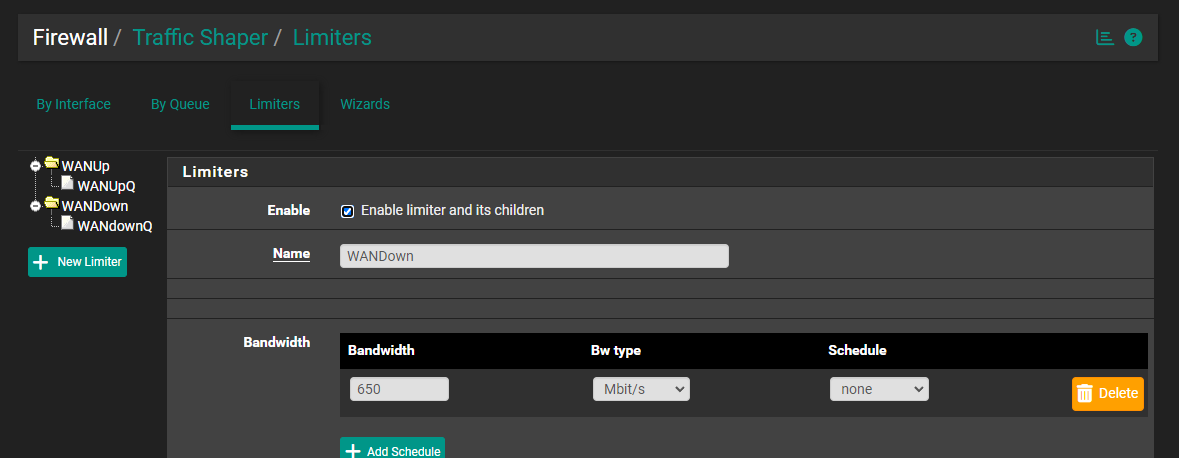
Create two limiters (fancy queues that know when to say “no”):
Download Limiter (WANDown):
- Set bandwidth to about 90-95% of your download speed
- In my case: 650 Mbit/s (about 95% of 680)
- Enable the limiter
Upload Limiter (WANUp):
- Set bandwidth to about 85-90% of your upload speed
- In my case: 170 Mbit/s (about 90% of 190)
- Upload usually needs more headroom because of ACK packets
Step 3: Apply the Limiters
Create firewall rules that apply these limiters to your WAN interface traffic. The exact steps vary by router, but the concept is:
- Outgoing traffic → Upload limiter
- Incoming traffic → Download limiter
Step 4: Advanced Options (For the Moss-Level Users)
If your router supports it, enable CoDel (Controlled Delay) or CAKE (Common Applications Kept Enhanced) algorithms. These are “smart queue management” systems that make bufferbloat practically disappear. They’re like having a really efficient queue manager who tells people to stop getting in line when the queue is too long.
Why This Works (The Technical Bit)
By limiting your bandwidth to slightly below your maximum, you ensure that the bottleneck is at YOUR router (which you control) and not at your ISP’s equipment (which has massive buffers and doesn’t care about your gaming latency).
When the bottleneck is at your router, you can use smart algorithms like CoDel or CAKE that:
- Keep queues short
- Drop packets intelligently when needed
- Give each “flow” (connection) fair treatment
- Respond dynamically to network conditions
It’s like having Richmond manage the queue instead of Jen - he might be weird, but he’s surprisingly efficient.
The Results (Sweet, Sweet Victory)
After configuring traffic shaping:
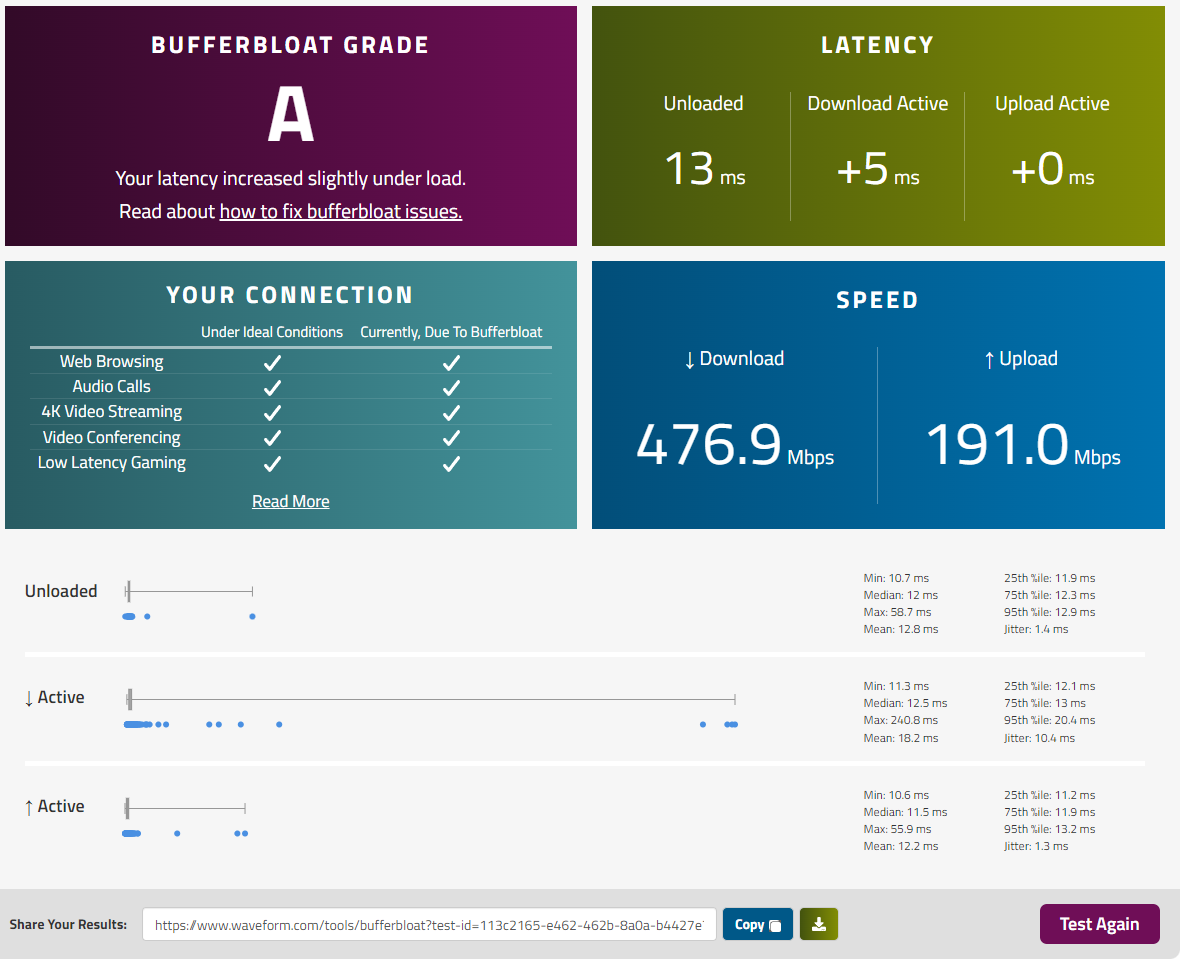
Look at this beauty:
- Grade: A (Denholm would be proud!)
- Unloaded latency: 13ms (basically the same)
- Download active: +5ms (reduced from +37ms!)
- Upload active: +0ms (perfect!)
- Speed: 476.9 Mbps down / 191.0 Mbps up
The Trade-off
Yes, I “lost” about 200 Mbps of download speed (680 → 477). But here’s the thing - I don’t need 680 Mbps. Know what I DO need? Consistent low latency.
That reduction from +37ms to +5ms during downloads means:
- Gaming stays smooth even when streaming
- Video calls don’t freeze when someone downloads files
- Web pages load instantly instead of waiting for upload queues to clear
- My sanity remains intact (mostly)
It’s like the difference between a Ferrari stuck in traffic and a reliable Toyota that actually gets you there on time. Speed means nothing if you’re waiting in a queue.
Bufferbloat in 2025: Still a Problem (Unfortunately)
You might think “surely modern routers have fixed this by now?” And you’d be wrong - just like Jen thinking the internet was a small black box.
According to recent research, bufferbloat remains a hidden bottleneck in:
- 5G Networks: All that speed, all that latency
- Satellite Internet: Space might be the final frontier, but bufferbloat is the current one
- Cloud Gaming: Nothing kills Stadia… wait, bad example. Nothing kills GeForce NOW faster than bufferbloat
- Smart Home Devices: Turns out IoT devices love creating bufferbloat
As bandwidth increases, people assume latency will improve. But without proper queue management, you just get faster pipes with bigger traffic jams.
Solutions for Different Routers
Consumer Routers with QoS
Most modern routers have some form of QoS:
- Find the QoS settings (usually under Advanced or Traffic Management)
- Enable QoS/Traffic Control
- Set bandwidth limits to 85-95% of your measured speeds
- Look for “SQM” or “Smart Queue Management” options if available
OpenWrt Routers
OpenWrt has excellent SQM support:
- Install the
luci-app-sqmpackage - Configure it with your bandwidth limits
- Choose cake or fq_codel as the qdisc
- Enjoy latency so low, you’ll think your clock is broken
pfSense/OPNsense
As shown above:
- Use Traffic Shaper → Limiters
- Set appropriate bandwidth limits
- Apply to firewall rules
- Optional: Install fq_codel package for even better results
Commercial “Gaming” Routers
Many come with “Gaming QoS” built-in:
- Just enable it
- It might actually work (shocking, I know)
- But it probably won’t be as good as manual configuration
Testing Your Fix (Trust, but Verify)
After configuring QoS:
- Run the bufferbloat test again
- You should see latency increases of less than 10-20ms
- Grade should be A or B
- If not, reduce bandwidth limits further
Keep testing and adjusting until you find the sweet spot - it’s like adjusting your chair height, except your chair is a router and your comfort is measured in milliseconds.
Common Mistakes (Don’t Be a Jen)
Mistake 1: Setting Limits Too High
If you set your limits at 99% of your bandwidth, you haven’t left enough headroom. The bottleneck will still sometimes be at your ISP, bringing back the bufferbloat.
Fix: Try 85-90% to start, especially for upload.
Mistake 2: Not Testing Under Load
Don’t just test while your network is idle. Run the bufferbloat test while someone is streaming, downloading, uploading - simulate real-world usage.
Fix: Make your family angry by using all the bandwidth during testing.
Mistake 3: Expecting No Speed Loss
Yes, your speed test numbers will be lower. No, this is not a problem.
Fix: Realize that consistent 450 Mbps is better than variable 0-700 Mbps.
Mistake 4: Forgetting to Adjust When Internet Speed Changes
If your ISP upgrades your service, your old QoS settings become ineffective.
Fix: Re-test and adjust limits when your plan changes.
The Technical Deep Dive (For the Moss Among Us)
If you want to really understand bufferbloat, here’s what’s happening at the packet level:
Traditional routers use FIFO (First In, First Out) queues with large buffers. When congestion occurs:
- Packets arrive faster than they can be sent
- Router buffers them (stores them in RAM)
- Buffer grows and grows
- Packets wait longer and longer
- Latency increases to hundreds of milliseconds
- TCP sees this as “network has capacity” and sends MORE
- Death spiral of latency ensues
Modern AQM (Active Queue Management) algorithms like CoDel and CAKE fix this by:
- Monitoring queue delay, not queue length
- Dropping packets before buffers fill completely
- Treating different flows fairly (per-flow queuing)
- Signaling TCP to slow down before disaster strikes
- Maintaining consistently low latency
The magic is in the algorithm names:
- CoDel: Controlled Delay - drops packets when queue delay exceeds a target (default 5ms)
- CAKE: Common Applications Kept Enhanced - CoDel + flow isolation + fancy features
- fq_codel: Fair Queue CoDel - CoDel with per-flow fairness
Conclusion: You’ve Defeated the Bloat
And there you have it! You’ve successfully configured QoS, defeated bufferbloat, and can now game/stream/video-call without your latency looking like Moss’s dating history - all over the place and generally disappointing.
Your internet connection now behaves like a well-managed IT department:
- Responsive when you need it
- Doesn’t keep you waiting unnecessarily
- Handles multiple tasks efficiently
- Actually works as intended
The best part? Unlike most IT problems, this one STAYS fixed. You don’t need to turn it off and on again (though Roy would still recommend it, just to be safe).
Remember: A fast internet connection with high latency is like a sports car stuck in traffic. A slightly slower connection with low latency is like a reliable car on an open road. I know which one I’d rather have.
Now go forth and enjoy your bloat-free internet! And if anyone asks how you fixed it, just tell them you “optimized the packet queue management algorithms to implement active queue management with controlled delay mechanisms.” They’ll be so confused, they’ll think you’re Moss.
Further Reading (For the Keen Students)
- Bufferbloat.net - The canonical source for bufferbloat information
- pfSense Traffic Shaping Guide - Detailed pfSense setup
P.S. - Have you tried limiting your bandwidth? It’s the new “turn it off and on again”!
Sources:
- What Can I Do About Bufferbloat? - Bufferbloat.net
- What Is Bufferbloat? The Hidden Cause of Gaming Lag & How to Fix It | Netduma
- Understanding Bufferbloat: Causes, Effects, and How to Fix It
- The Homelabber | Eliminating Bufferbloat and Improving Internet Performance in pfSense
- Bufferbloat: Why it is Harming Your Broadband and How to Easily Fix It